SD card shows unallocated space and cannot format
My SD card shows unallocated space in Disk Management and File Explorer has no sign of this drive, how can I use it again, the USB Drive I’m using is 8GB in size
Before we proceed, please check the USB drive in Disk Management to see if its all unallocated space or just part of the drive shows:
If the entire disk display as unallocated space, we can:
- Create a new volume on unallocated space
If part of the disk shows unallocated space, 8GB shows 4GB, for example, we can:
- Extend the partition with unallocated space
- Create a new partition on unallocated space
- Merge partitions into a large partition after a new partition is created
- Delete the partition and create a partition on the larger unallocated space
Create a partition on unallocated space
Open Disk Management and right-click on unallocated space, click New simple volume wizard and follow the guide to create a new partition, this guide will format the area when creating, then it will pop-up a new window, that the root directory of the new partition

Diskpart command line is another tool to create a new partition, press WIN+R, and type diskpart and press enter, the type the following commands
- list disk
- select disk 2
- clean
- create partition primary
- assign letter=f
- format fs=exfat quick

Then we should have a primary partition with the exFAT file system, feel free to replace “primary” with “logical”, it’s not required as for USB drives, but do select the right disk, check the disk number in Disk Management, it is the last one if only one USB drive is connected
If the above two methods failed due to some error message, we can try the third option, create the new volume in Partition Expert, don’t need to install this program, use the portable edition is the same, download it and directly run it from the package, then follow the steps below:
- Click on the unallocated space and choose Create Volume from the sidebar
- The create volume window shows all the elements for creating a new volume, click OK to use the default settings, or specify each item on needs
- Then this operation is added to the “Pending operations” section, click Commit to perform this operation
That’s how we create a new partition on unallocated space, by doing so, the USB drive should be listed in File Explorer and can be used again
Merge partitions into one partition
This method is used when unallocated space is part of the disk, the rest area is a partition, after we created a new partition we can merge two partitions into one, unfortunately, neither Disk Management nor diskpart has such function, but in Partition Expert, we can do it like this:
- Right-click on the new partition and select “Merge Volume”
- In the merge volume window check both the new partition and the original partition
- Choose the target partition as the partition has data on it
- Click OK and Commit
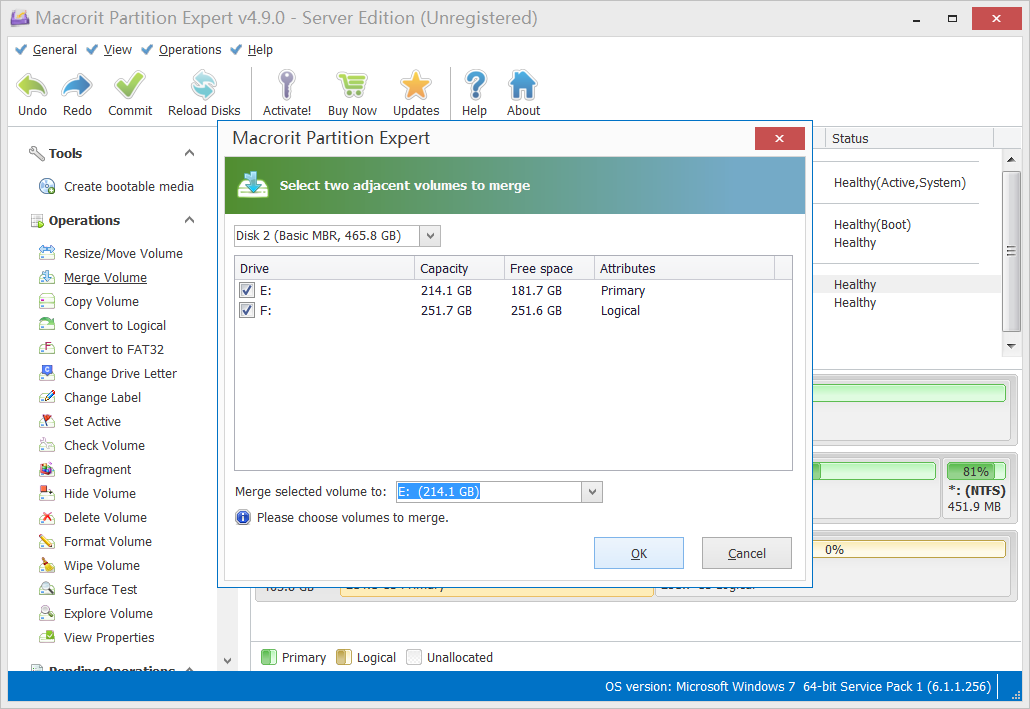
Then two partitions are merged as one and you’ll find a new folder, an empty one in the root directory of the merged partition, feel free to delete it
Info: You may have noticed that we sometimes use ‘click’ and ‘right-click’ and choose the functions to run in Partition Expert. What’s the difference? Actually, they’re the same, right-click context menu functions are the same functions from the sidebar, also the same functions in the “Operations” menu
Delete the original partition
Default tools are able to delete partition, but sometimes the Delete Volume option will be grayed out and the delete command in diskpart will show error too, so we’ll try this step in Partition Expert instead, details are followed:
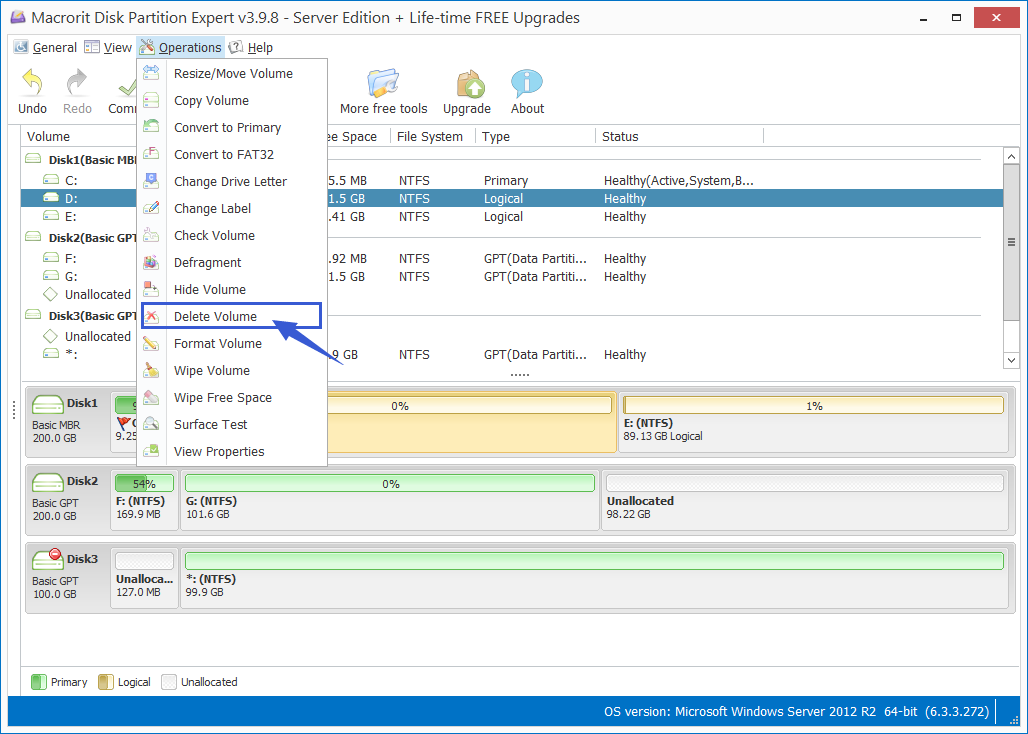
- Right-click on the original partition on the USB drive and choose Delete Volume
- Then Partition Expert will show up a warning message saying this operation will delete everything on this partition, and ask for permission to continue, click Yes if had a backup or nothing important is left on this volume
- If there are other partitions on the disk, use the same method to delete them all unless the entire disk become unallocated space
- Click on it and choose the function Create Volume and click OK, Commit
Those three methods shall solve the problem we mentioned in this page, if not, please don’t hesitate to email us with your USB issues, and we’ll be appreciated if some screenshots of Disk Management, or error message in diskpart command prompt.
Other Utilities